Blinking an LED is usually the first Arduino program everyone learns. But in real Arduino projects, you rarely use just one LED. Most projects need multiple LEDs blinking at the same time, either independently or in different patterns.
In this tutorial, you will learn how to blink multiple LEDs on Arduino using simple, beginner-friendly code. Each example is explained step by step, so even if you are new to Arduino, you can easily follow along and understand how it works.
This guide focuses on clean and scalable methods, so you can later add more LEDs without rewriting your entire code.
What You Will Learn:
By the end of this Multiple Blinking LED on Arduino tutorial, you will be able to learn:
- How to connect multiple LEDs to Arduino.
- How to control LEDs independently.
- How to create simple LED blinking patterns.
- How to blink multiple LEDs using digitalWrite().
- How to control LED blinking using delay().
- How to write simple and scalable Arduino code for beginners.
Components Required:
To blink an LED using Arduino, you need the following components:
| Component | Quantity |
|---|---|
| Arduino board (Uno / Nano / Mega) | 1 |
| LED | 3 |
| Resistor (220Ω or 330Ω) | 3 |
| Breadboard | 1 |
| Jumper wires | As required |
| USB cable | 1 |
Circuit Diagram Explanation:
To keep this tutorial simple and beginner friendly. I will follow a clear step-by-step wiring approach.
In this setup, each LED is connected to a different Arduino digital pin using a current-limiting resistor to prevent damage from excessive current.

LED to Arduino Pin Mapping:
| LED | Arduino Pin | Purpose |
|---|---|---|
| LED 1 | Pin 11 | Blink / Output Indicator |
| LED 2 | Pin 12 | Blink / Output Indicator |
| LED 3 | Pin 13 | Blink / Output Indicator |
Step-by-Step Wiring:
Follow these simple steps to connect an LED to your Arduino board safely.
Step 1: Insert the LEDs into the breadboard
Make sure each LED is placed in a separate row.
Step 2: Identify LED terminals
- Long leg → Anode (+)
- Short leg → Cathode (–)
Step 3: Connect current-limiting resistors
Attach a 220Ω resistor to the anode (long leg) of each LED.
Step 4: Connect resistors to Arduino pins
- LED 1 → Pin 10
- LED 2 → Pin 11
- LED 3 → Pin 12
Step 5: Connect all cathodes to ground
- Join all short legs (cathodes) of the LEDs.
- Connect them to the GND pin of the Arduino.
Blinking Multiple LEDs Using delay() in Arduino:
This method is simple, easy to understand, and widely used by beginner. It helps you visually understand how LEDs turn ON and OFF. But it is not suitable for advanced projects because it also has important limitations that you should know before moving to real projects.
Below is a simple Arduino program that blinks three LEDs connected to digital pins 11, 12, and 13.
/*
 * Created by Aticleworld.com
 *
 * Tutorial page: https://aticleworld.com/multiple-blinking-led-on-arduino
 */

// Define LED pin numbers
#define LED1 11 // LED connected to digital pin 11
#define LED2 12 // LED connected to digital pin 12
#define LED3 13 // LED connected to digital pin 13

void setup()
{
  // Configure LED pins as OUTPUT
  pinMode(LED1, OUTPUT);
  pinMode(LED2, OUTPUT);
  pinMode(LED3, OUTPUT);
}

void loop()
{
  // Turn ON LED1
  digitalWrite(LED1, HIGH);
  // Wait for 500 milliseconds (0.5 second)
  delay(500);
  digitalWrite(LED1, LOW); // Turn OFF LED1

  // Turn ON LED2
  digitalWrite(LED2, HIGH);
  // Wait for 500 milliseconds
  delay(500);
  digitalWrite(LED2, LOW); // Turn OFF LED2

  // Turn ON LED3
  digitalWrite(LED3, HIGH);
  // Wait for 500 milliseconds
  delay(500);
  digitalWrite(LED3, LOW); // Turn OFF LED3
}
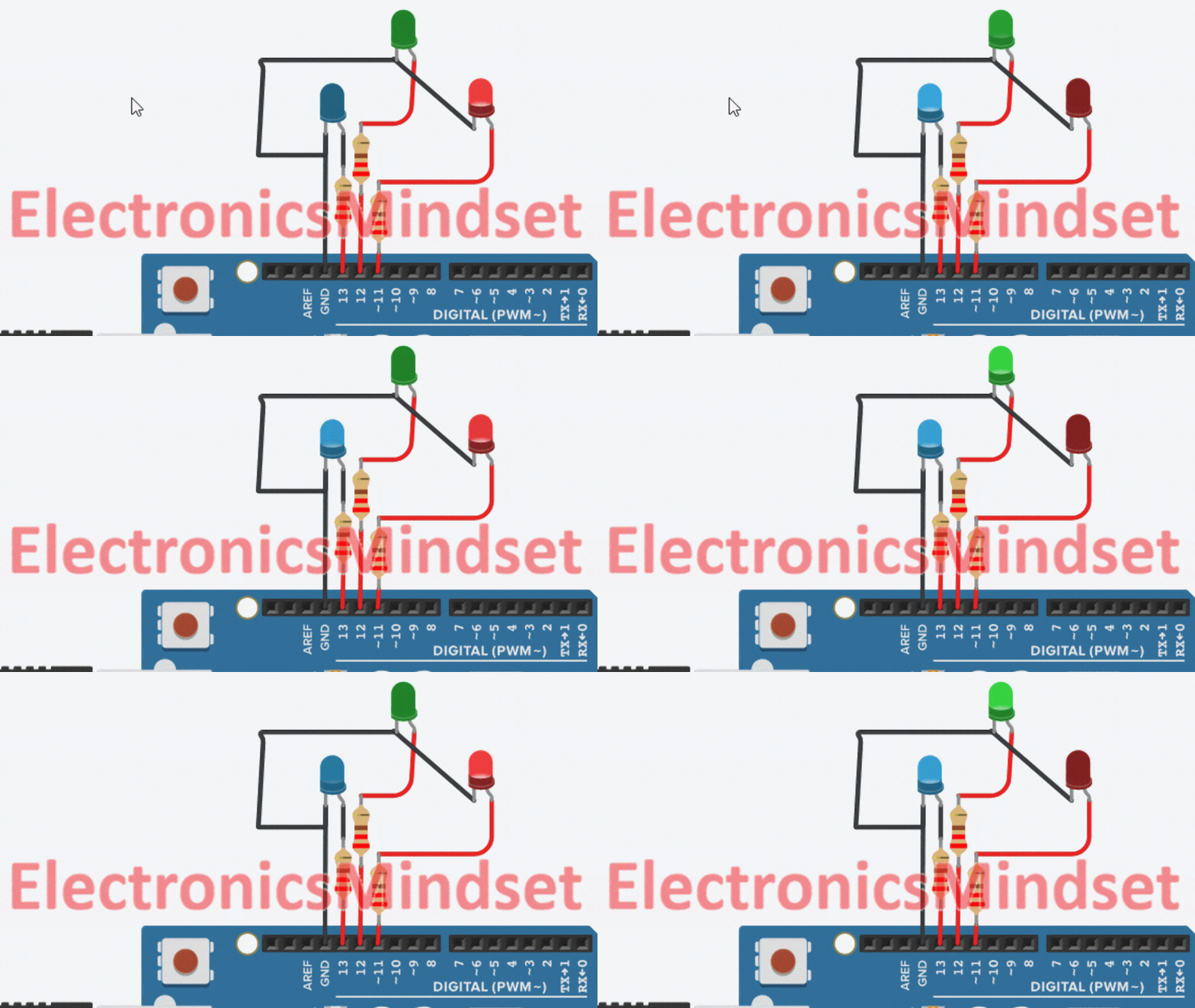
How This Code Works:
Let’s understand the program step by step:
- 🔴 LED1 turns ON for 500 milliseconds and then turns OFF
- 🟢 LED2 turns ON for 500 milliseconds and then turns OFF
- 🔵 LED3 turns ON for 500 milliseconds and then turns OFF
- 🔁 This blinking pattern repeats continuously inside the loop() function
Each LED blinks sequentially, not simultaneously.
Limitations of delay()
- Blocks execution.
- LEDs cannot blink independently.
- Not suitable for multitasking.
Blinking Multiple LEDs Independently Using millis():
This method uses the Arduino millis() function instead of delay(), making it a non-blocking and professional approach. In this code, we use millis() to create a non-blocking timer.
Why Use millis() Instead of delay()?
Using millis() allows the Arduino to perform multiple tasks at the same time without stopping program execution.
This Method Allows:
- Independent blinking speeds for each LED
- Clean and scalable code structure
- No external libraries
- Non-blocking execution (CPU remains free)
Sequential LED Blinker Using Hardcoded Finite State Machine:
This program blinks LEDs one after another using a Hardcoded state machine and millis(), without using delay(). Only one LED is ON at a time, and it changes every 1 second.
/*
 * Created by Aticleworld.com
 *
 * Tutorial page: https://aticleworld.com/multiple-blinking-led-on-arduino
 */


// LED pins of arduino blink multiple led
const int ledPins[] = { 11, 12, 13 };
const uint8_t numLeds = sizeof(ledPins) / sizeof(ledPins[0]);

// Time interval (ms)
const unsigned long interval = 1000;

// Timing reference
unsigned long previousMillis = 0;

// Define states
enum LedState { LED_0, LED_1, LED_2 };

// Current state
LedState currentState = LED_0;

void setup()
{
  for (uint8_t i = 0; i < numLeds; i++)
  {
    pinMode(ledPins[i], OUTPUT);
    digitalWrite(ledPins[i], LOW);
  }

  // Enter initial state
  digitalWrite(ledPins[0], HIGH);
}

void loop()
{
  unsigned long currentMillis = millis();

  if (currentMillis - previousMillis >= interval)
  {
    previousMillis = currentMillis;

    // Exit current state (turn OFF current LED)
    digitalWrite(ledPins[currentState], LOW);

    // State transition
    switch (currentState)
  {
    case LED_0:
      currentState = LED_1;
      break;

    case LED_1:
      currentState = LED_2;
      break;

    case LED_2:
      currentState = LED_0;
      break;
    }

    // Enter next state (turn ON next LED)
    digitalWrite(ledPins[currentState], HIGH);
  }
}
Short Code Explanation:
- The program blinks one LED at a time in sequence (11 → 12 → 13).
- It uses millis() instead of delay(), so the CPU is not blocked.
- Each LED represents a state in a simple state machine.
How it works:
- ledPins[] stores LED pin numbers.
- interval defines how long each LED stays ON (1 second).
- currentState tracks which LED is currently ON.
- previousMillis stores the last time the LED changed.
- When the time interval expires:
- The current LED turns OFF.
- The state moves to the next LED
- The next LED turns ON
- After the last LED, the sequence wraps back to the first.
Sequential LED Blinker Using Linear State Machine:
This program makes LEDs blink one after another, one LED at a time. It uses millis() instead of delay(), so the Arduino does not get stuck waiting and can-do other tasks at the same time.
Only one LED is ON at any moment, and the active LED changes every 1 second.
The program uses an array of LED pins, and the array index works like a step counter. This means you don’t need to change the logic when you add more LEDs.
If you connect more LEDs to your ATmega2560, just add their pin numbers to the array—the program will automatically handle them.
/*
 * Created by Aticleworld.com
 *
 * Tutorial page: https://aticleworld.com/multiple-blinking-led-on-arduino
 */

// LED pins of arduino blink multiple led
const int ledPins[] = {11, 12, 13};
const uint8_t numLeds = sizeof(ledPins) / sizeof(ledPins[0]);

// Timing
const unsigned long interval = 1000;
unsigned long previousMillis = 0;

// Current LED index (acts as state)
uint8_t currentLed = 0;

void setup()
{
  for (uint8_t i = 0; i < numLeds; i++)
  {
    pinMode(ledPins[i], OUTPUT);
    digitalWrite(ledPins[i], LOW);
  }

  // Start with first LED ON
  digitalWrite(ledPins[currentLed], HIGH);
}

void loop()
{
  unsigned long currentMillis = millis();

  if ((currentMillis - previousMillis) >= interval)
  {
    previousMillis = currentMillis;

    // Turn OFF current LED
    digitalWrite(ledPins[currentLed], LOW);

    // Move to next LED (state transition)
    currentLed = (currentLed + 1) % numLeds;

    // Turn ON next LED
    digitalWrite(ledPins[currentLed], HIGH);
  }
}
Short Explanation:
- currentLed acts as the state
- Each index corresponds to one LED
- Every 1 second:
- Current LED turns OFF
- Index increments
- Wraps back to 0 using modulo (%)
Uploading the Program:
Once your code is ready, follow these steps to upload it to the ATmega2560 (Arduino Mega 2560):
Connect the Board:
Plug your Arduino Mega 2560 into your computer using a USB cable.
Open the Arduino IDE:
Launch the Arduino IDE on your PC or laptop.
Select the Board:
Go to Tools → Board → Arduino AVR Boards and select Arduino Mega or Mega 2560.

Select the Port:
Go to Tools → Port and choose the port that appears after connecting the board (for example, COM4 on Windows or /dev/tty… on macOS/Linux).
Upload the Code:
Click the Upload button (right-arrow icon) or press Ctrl + U.

After the upload is complete, the built-in LED will start blinking according to your program.
Troubleshooting & Common Mistakes (Multiple Blinking LEDs on Arduino)
If your LEDs are not blinking as expected while working on a Multiple Blinking LED on Arduino project, check the following points:
- LED connected in reverse (polarity issue)
- Missing or incorrect resistor value
- Wrong Arduino pin number in code
- GND not connected properly.
- Loose or incorrect wiring.
Fixing these basic issues solves most beginner problems
Frequently Asked Questions (FAQ)
Q1) Can multiple LEDs blink at different speeds?
Yes, using the millis() approach, each LED can have its own interval. This topic will be covered in a separate blog post with a complete example.
Q2) How many LEDs can Arduino control?
The ATmega 2560 (Arduino Mega) provides 54 digital I/O pins, so it can directly control up to 54 LEDs. You can control even more LEDs by using shift registers, I/O expanders, or LED driver ICs.
Q3) Is delay() bad?
No, but it is not recommended for scalable or real‑time applications. Because delay() blocks the CPU.
You May Also Like
- How To Control An LED With A Button and Arduino.
- Arduino Blink LED Tutorial – Circuit and Code Example.
- Multiple Blinking LED on Arduino at different speed.
- Does the Current Change After a Resistor?
- What is use of current Limiting Resistor?
- How to Interface an LED with an 8051 Microcontroller.
- Map-Based Method for GPIO Alternate Function Configuration.
- How to Interface an LED with an STM32H5.
- Interfacing of switch and led using the 8051.
- STM32 GPIO Guide: How to Control LEDs and Button.