In the previous post, we learned how to control an LED using a push button and an Arduino. Now, let’s take the next step by building a simple yet practical Arduino project that uses a push button to control a relay.
Relays allow low-voltage microcontrollers like Arduino to safely control high-voltage or high-current devices such as lamps, fans, pumps, or motors. For anyone interested in real-world electronics and embedded systems, this is a fundamental and must-learn concept.
In this project, we will control a relay module using a push button. This example helps you understand how digital inputs (push buttons) and digital outputs (relay control signals) work together in an embedded system.
Throughout this tutorial, you will learn how Arduino:
- Reads the state of a push button.
- Applies basic digital logic in software.
- Controls a relay module based on user input.
This project builds a strong foundation in Arduino programming, embedded systems basics, and practical electronics interfacing. By the end of this article, you will be able to control real-world (Fan, Motor, or Any Electrical Device) devices using a push button and an Arduino.
By the end of this article, you will learn:
- How push-button work.
- How to wire a button and Relay correctly.
- How to safely switch high-power devices using a simple button and an Arduino.
- How a relay works and why it is used.
- How to interface a push button with Arduino.
- How to control a relay using digital output pins.
- Safety considerations when working with relays.
Components Required:
To blink an LED using Arduino, you need the following components:
| Component | Quantity |
|---|---|
| Arduino board (Uno / Nano / Mega) | 1 |
| LED | 1 |
| BUTTON | 1 |
| Relay | 1 |
| Resistor (220Ω or 330Ω) | 1 |
| Breadboard | 1 |
| Jumper wires | As required |
| USB cable | 1 |
What Does This Project Do?
In this DIY Arduino project, you will learn how to control an electrical device using a relay module and a push button. When the button is pressed, the Arduino reads the input signal and switches the relay ON, allowing you to power devices such as a light bulb, fan, or motor. Releasing the button turns the relay OFF, safely disconnecting the device.
In simple words,
- 🟢Turn ON a relay when a button is pressed.
- 🔴Turn OFF the relay when the button is released.
This blog post is ideal for beginners who want to understand Arduino relay control, button interfacing, and how to use a relay to control high-voltage or high-current devices using a low-voltage Arduino board.
Circuit Diagram Explanation:
To keep this tutorial simple and beginner friendly. I will follow a clear step-by-step wiring approach.
In this setup, the LED, push button, and relay module are each connected to separate digital pins on the Arduino. The LED is connected through a current-limiting resistor, which protects it from excessive current and prevents permanent damage.
The push button is used as an input device to send commands to the Arduino, while the relay acts as an output device that allows the Arduino to control higher-power loads safely.
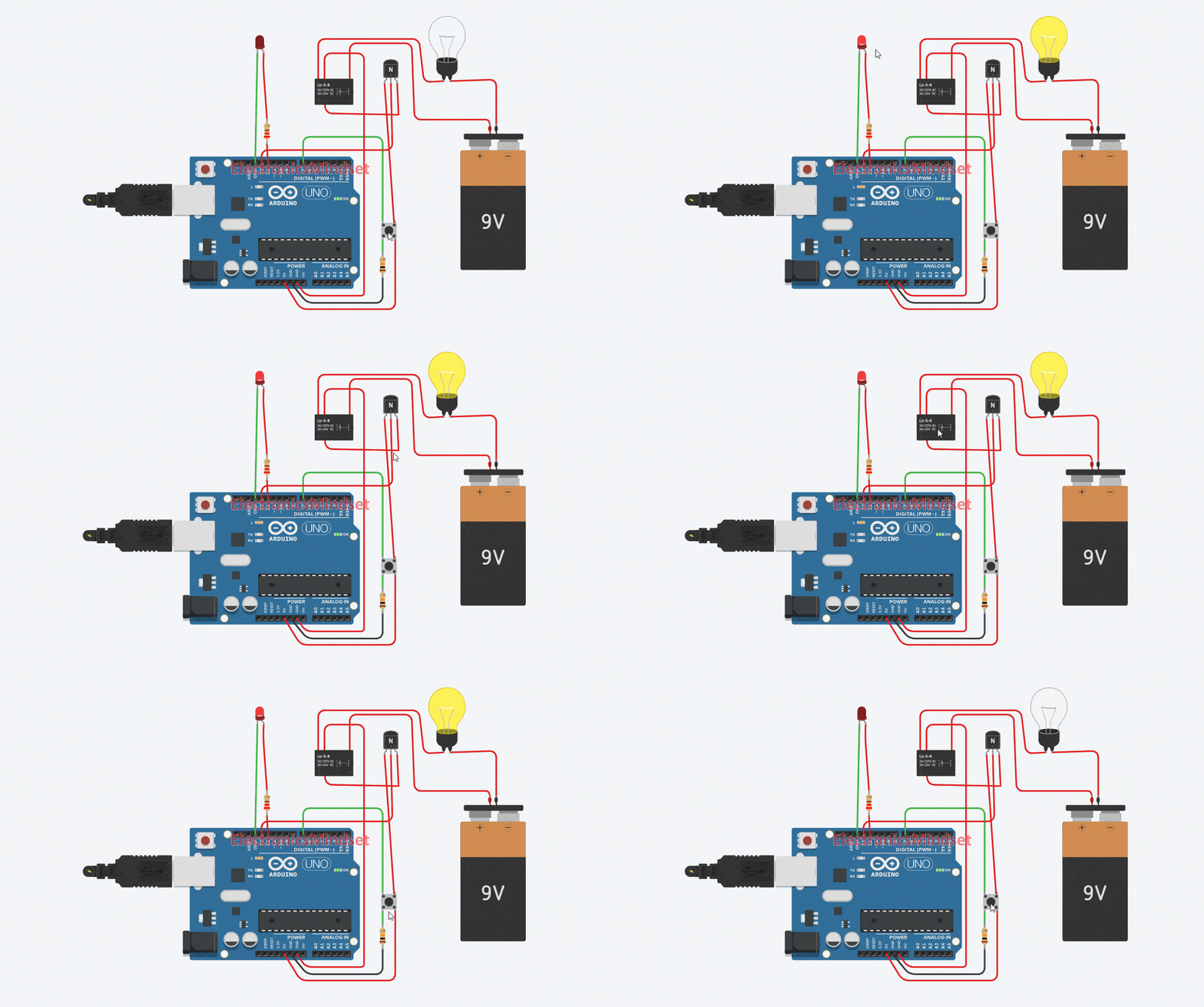
Arduino Pin Mapping:
| LED | Arduino Pin | Purpose |
|---|---|---|
| Push Button | Pin 7 | Input Device |
| LED | Pin 12 | Blink / Output Indicator |
| Relay | Pin 13 | Control Device |
Step-by-Step Wiring
Follow these simple steps to safely connect the push button, LED, and relay to your Arduino board.
Step 1: Insert the LED into the Breadboard
- Place the LED on the breadboard so that its two legs are in separate rows.
Step 2: Identify LED Terminals
- Long leg → Anode (+)
- Short leg → Cathode (–)
Step 3: Connect the Current-Limiting Resistor
- Connect a 220Ω resistor to the anode (long leg) of the LED.
- This resistor limits the current and protects the LED from damage.
Step 4: Connect the LED to the Arduino
- Connect one end of the 220Ω Resistor to Arduino Pin 12.
- Connect the other end of the resistor to the Long Leg (+ Anode) of the LED.
- Connect the Short Leg (- Cathode) of the LED directly to GND.
Step 5: Connect the Push Button
- Connect one terminal of the push button to Arduino Pin 7.
- Connect the other terminal to GND.
- The internal pull-up resistor will be enabled in software.
Step 6: Connect the Relay Module
- Connect the IN pin of the relay module to Arduino Pin 13.
- Connect VCC to 5V and GND to GND on the Arduino.
Arduino Button Relay Arduino Code:
Now let’s see how to program an Arduino to control a relay using a push button.
Open the Arduino IDE, write the following code, and upload the sketch to your Arduino board. This will allow you to control the relay by pressing the button, creating a simple Arduino Button Relay DIY project.
#define BUTTON_PIN 7
#define LED_PIN 12
#define RELAY_PIN 13
#define DEBOUNCE_MS 50

// Tracks output state (LED + Relay)
uint8_t outputState = LOW;

/*
 * Returns true ONLY once
 * when the button is successfully pressed
 */
bool isButtonPressed() {
  /*
   * Static variables persist between function calls
   * This function works for ONLY ONE button
   */
  static uint8_t lastRawState = HIGH;
  static uint8_t stableState = HIGH;
  static unsigned long lastChangeTime = 0;

  // 1. Read button pin
  uint8_t rawState = digitalRead(BUTTON_PIN);
  unsigned long now = millis();

  // 2. Reset debounce timer if state changes
  if (rawState != lastRawState) {
    lastRawState = rawState;
    lastChangeTime = now;
  }

  // 3. Check if state is stable
  if ((now - lastChangeTime) >= DEBOUNCE_MS) {
    if (rawState != stableState) {
      stableState = rawState;

      // 4. Detect valid button press (LOW due to pull-up)
      if (stableState == LOW) {
        return true;
      }
    }
  }

  return false;
}

void setup() {
  /*
   * Use internal pull-up resistor
   * Button connected between pin and GND
   */
  pinMode(BUTTON_PIN, INPUT_PULLUP);
  pinMode(LED_PIN, OUTPUT);
  pinMode(RELAY_PIN, OUTPUT);

  // Set initial states
  digitalWrite(LED_PIN, outputState);
  digitalWrite(RELAY_PIN, outputState);
}

void loop() {
  // Non-blocking button check
  if (isButtonPressed()) {
    // Toggle output state
    outputState = !outputState;

    // Update LED and Relay
    digitalWrite(LED_PIN, outputState);
    digitalWrite(RELAY_PIN, outputState);
  }
}
Uploading the Program:
Once your code is ready, follow these steps to upload it to the ATmega2560 (Arduino Mega 2560):
Connect the Board:
Plug your Arduino Mega 2560 into your computer using a USB cable.
Open the Arduino IDE:
Launch the Arduino IDE on your PC or laptop.
Select the Board:
Go to Tools → Board → Arduino AVR Boards and select Arduino Mega or Mega 2560.

Select the Port:
Go to Tools → Port and choose the port that appears after connecting the board (for example, COM4 on Windows or /dev/tty… on macOS/Linux).
Upload the Code:
Click the Upload button (right-arrow icon) or press Ctrl + U.

After the upload is complete, the built-in LED will start blinking according to your program.
You May Also Like
- Blink Multiple LEDs at Different Speeds Using Arduino.
- Arduino Blink LED Tutorial – Circuit and Code Example.
- Does the Current Change After a Resistor?
- What is use of current Limiting Resistor?
- How to Interface an LED with an 8051 Microcontroller.
- Map-Based Method for GPIO Alternate Function Configuration.
- How to Interface an LED with an STM32H5.
- Interfacing of switch and led using the 8051.
- STM32 GPIO Guide: How to Control LEDs and Button.