“If you have ever tried to blink multiple LEDs at different speeds using Arduino and wondered why your board behaves strangely, then believe me this blog post is for you.”
Blinking multiple LEDs at different speeds using Arduino board is a very common requirement once you move beyond a basic project. When I was learning Arduino, I also faced the challenge of turning multiple LEDs ON and OFF at different speeds.
When learning Arduino, one of the first programs most beginners write is blinking an LED using the delay() function. This approach is simple, easy to understand, and works well for small and basic examples.
However, problems start to appear when you want to blink multiple LEDs at the same time, especially when each LED needs to blink at a different speed. Using the delay() function in such cases blocks the program, preventing the Arduino from handling multiple tasks simultaneously.
In our earlier articles, we covered how to blink a single LED and how to turn on multiple LEDs in sequence, one after another. These examples are excellent for building a strong foundation and understanding the basics of Arduino programming.
In this article, you will learn how to blink multiple LEDs independently using the millis() function. This non-blocking approach allows the Arduino to manage multiple tasks at once without stopping the program. The technique is beginner-friendly and introduces a professional programming style that is widely used in real-world Arduino and embedded system projects.
What You Will Learn From This Post
By the end of this Blinking Multiple LEDs at Different Speeds Using Arduino tutorial, you will be able to learn:
- How millis() enables non-blocking timing in Arduino
- How to blink multiple LEDs at different speeds independently
- How to manage multiple software timers in a single loop()
- How to write scalable and responsive Arduino code
Components Required:
To blink an LED using Arduino, you need the following components:
| Component | Quantity |
|---|---|
| Arduino board (Uno / Nano / Mega) | 1 |
| LED | 3 |
| Resistor (220Ω or 330Ω) | 3 |
| Breadboard | 1 |
| Jumper wires | As required |
| USB cable | 1 |
Circuit Diagram Explanation:
To keep this tutorial simple and beginner friendly. I will follow a clear step-by-step wiring approach.
In this setup, each LED is connected to a different Arduino digital pin using a current-limiting resistor to prevent damage from excessive current.

LED to Arduino Pin Mapping:
| LED | Arduino Pin | Purpose |
|---|---|---|
| LED 1 | Pin 11 | Blink / Output Indicator |
| LED 2 | Pin 12 | Blink / Output Indicator |
| LED 3 | Pin 13 | Blink / Output Indicator |
Step-by-Step Wiring:
Follow these simple steps to connect an LED to your Arduino board safely.
Step 1: Insert the LEDs into the breadboard
Make sure each LED is placed in a separate row.
Step 2: Identify LED terminals
- Long leg → Anode (+)
- Short leg → Cathode (–)
Step 3: Connect current-limiting resistors
Attach a 220Ω resistor to the anode (long leg) of each LED.
Step 4: Connect resistors to Arduino pins
- LED 1 → Pin 10
- LED 2 → Pin 11
- LED 3 → Pin 12
Step 5: Connect all cathodes to ground
- Join all short legs (cathodes) of the LEDs.
- Connect them to the GND pin of the Arduino.
Logic Behind Blinking Multiple LEDs at Different Speeds:
To blink multiple LEDs independently, think of each LED as a small independent task. Think of this like cooking three different dishes at the same time. You don’t sit and stare at the oven for 20 minutes; you check the clock, do something else, and come back when it is time.
For each LED, we maintain three simple things:
1. Each LED Own Timer:
- Each LED remembers the last time it was turned ON or OFF. This helps us calculate how much time has passed since the last change.
2. Each LED Own Blink Interval:
- Each LED has a fixed time interval:
- Fast LED → small interval
- Slow LED → large interval
When the elapsed time becomes equal to this interval, the LED is ready to toggle.
3. Each LED Own State (ON or OFF):
Each LED remembers whether it is currently:
- ON, or
- OFF
When the time is up, the state is flipped:
- ON → OFF
- OFF → ON
Blinking Multiple LEDs Independently Using millis()
A better and more professional approach is to use the millis() function, which allows multiple LEDs to blink independently without stopping the program. One of the biggest advantages of using the millis() function is that each LED can blink at its own speed, completely independent of the others.
Example: Different Blink Speeds:
| LED Name | Arduino Pin | Blink Interval | Blink Speed |
|---|---|---|---|
| LED 1 | Pin 11 | 500 ms | Fast |
| LED 2 | Pin 12 | 1000 ms | Medium |
| LED 3 | Pin 13 | 2000 ms | Slow |
Why Use millis() Instead of delay()?
The delay() function stops the entire program for a specified amount of time. If you will use delay() on your code, it has serious limitations in real projects.
When delay() is used:
- The CPU is completely blocked
- No other code can execute
- Inputs (buttons, sensors) are ignored
- Other LEDs or tasks cannot update
Otherhand, millis() provides a non-blocking timing mechanism.
Using millis():
- Time is tracked without stopping program execution.
- Multiple tasks can run side-by-side.
- Each LED or task can have its own timing.
- Code becomes scalable, responsive, and professional.
Arduino Code: Multiple LEDs at Different Speeds:
/*
 * Created by Aticleworld.com
 *
 * Tutorial page:
 * https://aticleworld.com/blink-multiple-leds-at-different-speeds-arduino
 */

// LED pins
const uint8_t ledPins[] = { 11, 12, 13 };

// Blink intervals (each LED has its own speed)
const unsigned long ledIntervals[] = { 500, 1000, 2000 };

// Last toggle time for each LED
unsigned long lastToggleTime[3] = { 0, 0, 0 };

// Current LED states
bool ledState[3] = { false, false, false };

void setup()
{
  for (int i = 0; i < 3; i++)
  {
    pinMode(ledPins[i], OUTPUT);
  }
}

void loop()
{
  unsigned long currentTime = millis();

  for (int i = 0; i < 3; i++)
  {
    if (currentTime - lastToggleTime[i] >= ledIntervals[i])
  {
      lastToggleTime[i] = currentTime;
      ledState[i] = !ledState[i];
      digitalWrite(ledPins[i], ledState[i]);
    }
  }
}
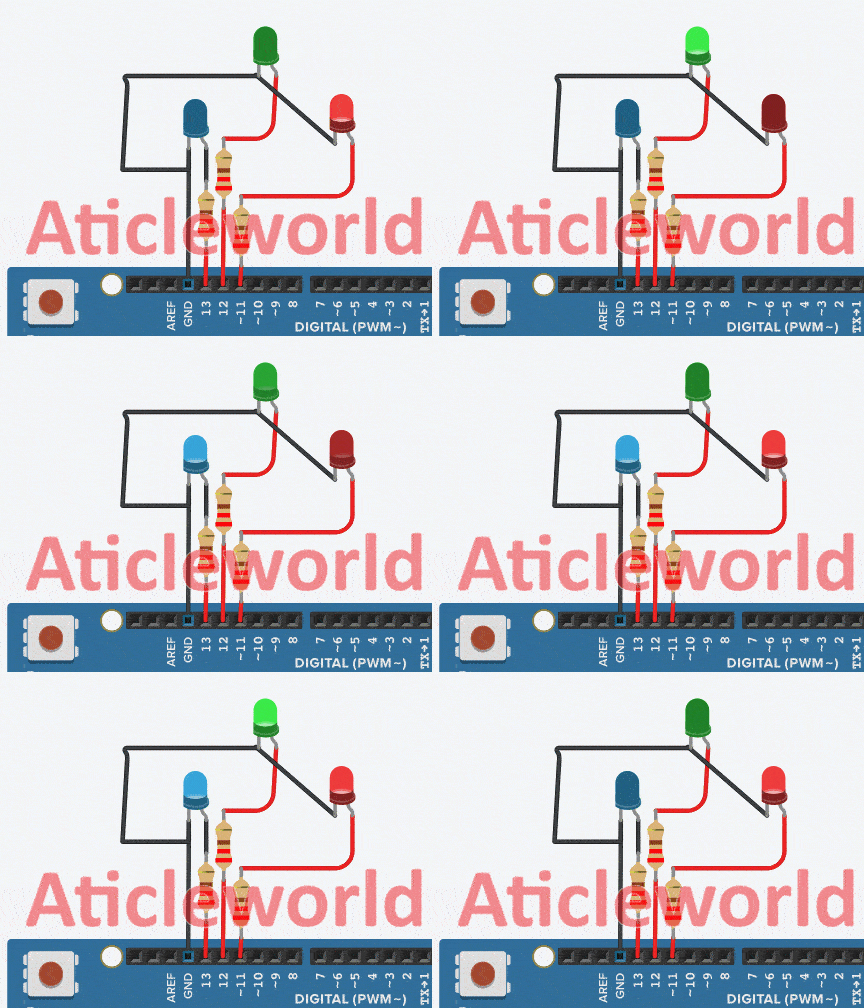
How This Code Works:
Let’s understand the program step by step:
- millis() returns the number of milliseconds since the Arduino started.
- Each LED has:
- Its own blink interval.
- Its own timer.
- Its own ON/OFF state
- In every loop:
- The current time is checked
- If enough time has passed for an LED:
- Its state is toggled (ON ↔ OFF)
- Its timer is updated
- All LEDs run independently, without blocking the CPU.
A More Scalable Version: Multiple LEDs at Different Speeds:
In the previous version of the code, the number of LEDs was hardcoded to three and separate lists for pins, times, and states. This approach works for small examples, but it can introduce hidden bugs when the project grows.
For example, when you add or remove an LED, you must manually update the array sizes and loop limits in multiple places. If even one value is missed, the program may behave incorrectly or unpredictably.
To solve this problem, we use a struct. This allows us to “bundle” everything an LED needs (its pin, its speed, and its memory) into one single package. In this improved version, adding or removing an LED requires minimal changes, and the core logic remains untouched.
This approach makes the code:
- Easier to extend.
- Safer to modify.
- More suitable for real-world projects.
Let’s now look at a more scalable implementation where each LED is treated as an independent task, and the program automatically adapts to the number of LEDs defined.
/*
 * Created by Aticleworld.com
 *
 * Tutorial page:
 * https://aticleworld.com/blink-multiple-leds-at-different-speeds-arduino
 */

struct LEDTask
{
  uint8_t pin;
  unsigned long interval;
  unsigned long lastToggle;
  bool state;
};

// Now you only have ONE list to manage!
LEDTask leds[] =
{
  {11, 500,  0, false},
  {12, 1000, 0, false},
  {13, 2000, 0, false}
};

// Automatically calculate how many LEDs are in the list
const int numLeds = sizeof(leds) / sizeof(leds[0]);

void setup()
{
  for (int i = 0; i < numLeds; i++)
  {
    pinMode(leds[i].pin, OUTPUT);
  }
}

void loop()
{
  unsigned long currentTime = millis();

  for (int i = 0; i < numLeds; i++)
  {
    if (currentTime - leds[i].lastToggle >= leds[i].interval)
  {
      leds[i].lastToggle = currentTime;
      leds[i].state = !leds[i].state;
      digitalWrite(leds[i].pin, leds[i].state);
    }
  }
}
Uploading the Program:
Once your code is ready, follow these steps to upload it to the ATmega2560 (Arduino Mega 2560):
Connect the Board:
Plug your Arduino Mega 2560 into your computer using a USB cable.
Open the Arduino IDE:
Launch the Arduino IDE on your PC or laptop.
Select the Board:
Go to Tools → Board → Arduino AVR Boards and select Arduino Mega or Mega 2560.

Select the Port:
Go to Tools → Port and choose the port that appears after connecting the board (for example, COM4 on Windows or /dev/tty… on macOS/Linux).
Upload the Code:
Click the Upload button (right-arrow icon) or press Ctrl + U.

After the upload is complete, the built-in LED will start blinking according to your program.
Troubleshooting & Common Mistakes (Multiple Blinking LEDs on Arduino)
If your LEDs are not blinking as expected while working on a Multiple Blinking LED on Arduino project, check the following points:
- LED connected in reverse (polarity issue)
- Missing or incorrect resistor value
- Wrong Arduino pin number in code
- GND not connected properly.
- Loose or incorrect wiring.
Fixing these basic issues solves most beginner problems.
FAQ: Blink LEDs with Different Frequencies:
Q: Why cannot I use the standard delay() function to blink LEDs at different frequencies?
The delay() function is “blocking function,” meaning it pauses the entire processor. If you tell LED_1 to wait 1000ms, LED_2 cannot turn on or off during that second. So, to blink at different rates, you must use “non-blocking” code.
Q: Is it better to use software timers or hardware interrupts for blinking?
For simple visual effects, software timers (like the millis() approach) are sufficient. However, if you need precise frequencies (e.g., for data transmission or high-speed strobing), use Hardware Timer Interrupts. These run independently of your main loop and guarantee exact timing.
Q: How can I manage code for 10+ LEDs blinking at different rates without it getting messy?
Use Object-Oriented Programming (C++) or Structs (C). Create a “Class” or “Structure” that holds the state, pin number, and frequency for one LED. You can then create an array of these objects and update them all inside a single for loop, keeping your main code clean and scalable.
Q: Why do my LEDs seem to synchronize periodically even though I set different frequencies?
This is called a polyrhythm effect. When blink timings share a common factor (like 500 ms and 1000 ms), they naturally line up, causing the LEDs to turn ON together again and again.
Real-Life Analogy:
- Imagine two people clapping:
- Person A claps every 2 seconds
- Person B claps every 4 seconds
- Every 4 seconds, both claps together.
If you want the LEDs to blink in a more random way, choose timings that do not fit nicely together, like 503 ms or 701 ms.
Q: Is it possible to synchronize multiple LEDs with different frequencies?
Yes, you can synchronize multiple LEDs with different frequencies. You need to write a non-blocking code like millis() in Arduino rather than delay(). This allows each LED to run on its own timer simultaneously.
Q: Can I control the brightness of each LED along with its frequency?
Yes. You can control brightness using PWM (Pulse Width Modulation) on supported pins. Instead of using digitalWrite() to turn the LED simply “ON”, you use analogWrite() to set a specific brightness level (0-255) during the active part of the blink cycle.
Q: How can I add more LEDs and control them individually?
Simply connect each new LED to an unused digital pin (and its own current-limiting resistor). In your code, create a separate object or variable set for each pin to manage its state independently.
Q: What is the maximum number of LEDs I can control simultaneously?
Directly, it depends on your microcontroller’s available GPIO pins. However, you are also limited by the maximum total current the chip can handle (often ~200mA for Arduino). To control dozens or hundreds of LEDs safely, use external drivers like Shift Registers (74HC595), LED Drivers, or use Addressable LEDs (like NeoPixels) which require only one data pin.
Q: How do I calculate the delay time for a specific frequency?
A: For a standard blink (50% on, 50% off), the formula is: Delay (ms) = 1000/ 2 * Frequency (Hz). Example: For 2 Hz, the total period is 500ms. The “On” time is 250ms, and “Off” time is 250ms.
Q: How can I create fading or pulsing effects?
Fading requires PWM. You rapidly change the duty cycle (brightness) inside a loop. For a “breathing” effect, you can increment the brightness from 0 to 255 and back down using a sine wave function or a simple for loop.
Q: Can I synchronize blinking with sensors?
Yes. You can read a sensor (e.g., a potentiometer or light sensor) and map that value to your blink delay variable. For example, higher light intensity could trigger a faster blink rate.
Q: Can I implement alternating or random sequences?
Yes. You can use arrays to store sequence patterns or use random() to generate unpredictable intervals. If you need complex “chasing” patterns across many LEDs, a shift register is often the most efficient hardware solution.
Q: How do I make specific patterns like a “heartbeat”?
A heartbeat pattern usually consists of a quick “double beat.” You would program a sequence: On (100ms) -> Off (100ms) -> On (100ms) -> Off (800ms). Using a timer-based state machine (non-blocking code) is the best way to keep this rhythm consistent.
Q: Can I blink LEDs to music?
Yes. You can use a microphone module or an audio input jack. The microcontroller samples the audio amplitude; if it exceeds a certain threshold (a “beat”), you trigger the LEDs.
Q: How can I control the patterns wirelessly?
You can add a Bluetooth (HC-05) or Wi-Fi (ESP32/ESP8266) module. The microcontroller listens for serial data commands (e.g., “Mode 1” from a phone app) and switches the active blinking function accordingly.
You May Also Like
- How To Control An LED With A Button and Arduino.
- Arduino Blink LED Tutorial – Circuit and Code Example.
- Multiple Blinking LED on Arduino.
- Does the Current Change After a Resistor?
- What is use of current Limiting Resistor?
- How to Interface an LED with an 8051 Microcontroller.
- Map-Based Method for GPIO Alternate Function Configuration.
- How to Interface an LED with an STM32H5.
- Interfacing of switch and led using the 8051.
- STM32 GPIO Guide: How to Control LEDs and Button.